Best Password Manager with Desktop Applications
Secure your logins across Windows, macOS, and Linux with PureVPN’s Password Manager. Autofill in desktop apps and browsers, sync across devices, and keep every credential encrypted in one vault.


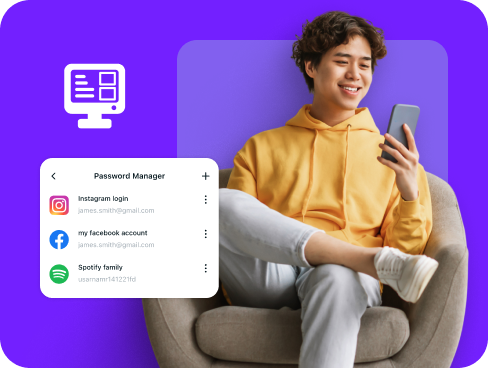
What is Desktop Password Manager?
A desktop password manager stores your logins, creates unbreakable passwords, and autofills them across desktop apps and browsers. While most platforms include basic password storage, many users turn to dedicated password managers for advanced features like secure sharing, encrypted notes, and cross-device syncing.
Why Do You Need a Password Manager on Desktop?
Your online accounts are vulnerable if your passwords are weak, reused, or stored insecurely. A password manager for desktop solves all that and more by helping you:
Manage All Your Credentials in One Place
From email to project software to finance apps, your desktop holds them all. Instead of juggling sticky notes or browser saves, catalog everything securely in one encrypted vault.
Create Strong, Unique Passwords
No more recycling the same password across different accounts. Generate unique, complex credentials for each app and website within seconds to avoid credential stuffing attacks.
Log in Easily and Quickly
Skip typing long strings or resetting forgotten passwords every time. With automatic form detection and autofill support, you can log into apps and services securely without effort.
Sync Passwords Across Devices
Switching devices shouldn’t mean losing access to your logins. Whether you’re on a desktop at work, or checking your mobile on the go, your vault updates instantly.
Store More Than Just Passwords
Keep license keys, Wi-Fi credentials, SSH access, and private notes encrypted alongside your passwords, organized and always available when you need them.
Why PureVPN Is the Best Password Manager with Desktop Applications?
PureVPN’s Password Manager is ideal for desktop users who want powerful security without the complexity. Here’s what makes it stand out from the rest:
Auto-Fill Across Apps and Browsers
Fill login forms quickly in desktop apps and all major browsers. Say goodbye to copying and pasting your passwords, or entering them manually into every application.
Cross-Platform Syncing
Whether you are switching between Windows, macOS, Linux, or mobile platforms, your data stays encrypted and always in sync, no matter which device you log in from.
Master Password Protection + Biometric Lock
Set a strong master password as your primary key and add biometric login on supported desktops. Together they provide fast access with reliable defense.
Encrypted Notes for Sensitive Data
Keep license codes, server credentials, or private notes encrypted inside the vault. Everything is protected with the same strength as your account logins.
Built-In Password Generator
Generate complex, random credentials instantly when installing new apps or updating accounts. Each password is unique and stored automatically in your vault.
Monitor Your Vault’s Health
Check for weak, reused, or outdated passwords to identify risky accounts so you can update them quickly and keep cybercriminals at bay.
The Real Power Is in the Integration
Most password managers just store your passwords. Ours shields how you access them from your desktop, too.
Logins That Leave No Trace
Every time you sign in, websites and networks see your IP and location. PureVPN masks those details so your login activity cannot be linked back to you.
Invisible by Design
Autofill requests and vault syncs move entirely inside the VPN tunnel. Outsiders see only encrypted traffic, never the services you’re updating or the data being exchanged.
One App, One Encrypted Ecosystem
Instead of piecing together different tools, PureVPN combines your vault, VPN, and tracker blocking in one desktop app for consistent protection without gaps.
Protection That Activates Instantly
Connect PureVPN and encryption takes over immediately. Browsing, logins, and vault activity all flow through the tunnel, while saved passwords remain secured inside the vault.
How to Set Up PureVPN’s Password Manager on Desktop
Just follow these three steps to get started:
Step 1

Download PureVPN on your Windows, Mac, or Linux desktop.
Step 2

Click Password Manager, create a master password and explore the other features.
Step 3

Add your credentials manually or import them and generate strong, unique passwords.

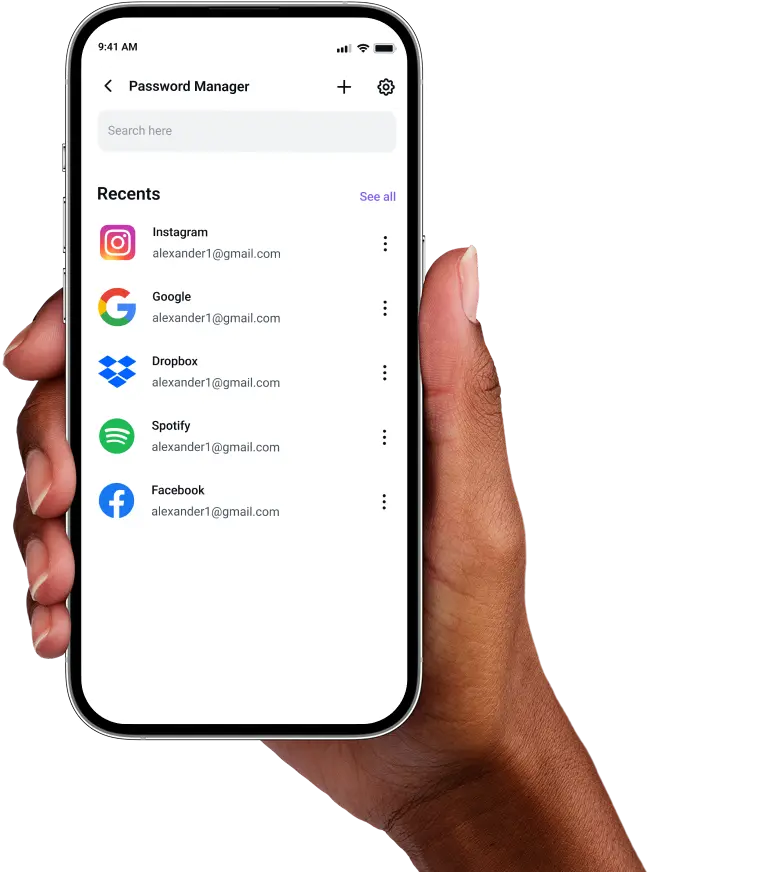
Frequently Asked Questions
Find answers to common questions about PureVPN Password Manager here.
Do desktops have a free password manager?


Yes. Most operating systems include some form of built-in password storage—Windows has Credential Manager, macOS and Linux rely on keychains or browser-based managers. They’re free but limited and often lack advanced features.
Why should I use a third-party password manager on my desktop?
Dedicated password managers go further than built-in tools. They create stronger passwords, sync across all devices, and secure extras like notes, payment details, and software keys. Features such password health checks make everyday use more secure.
Are desktop password managers safe?
Yes, when you choose a trusted provider like PureVPN, you’ve nothing to worry about. They use AES-256 encryption and zero-knowledge architecture, so only you can unlock your vault.
What is the best desktop password manager?
The best option combines strong security with wide compatibility. PureVPN’s Password Manager delivers encrypted storage, autofill across apps and browsers, and integrated VPN protection for login activity.